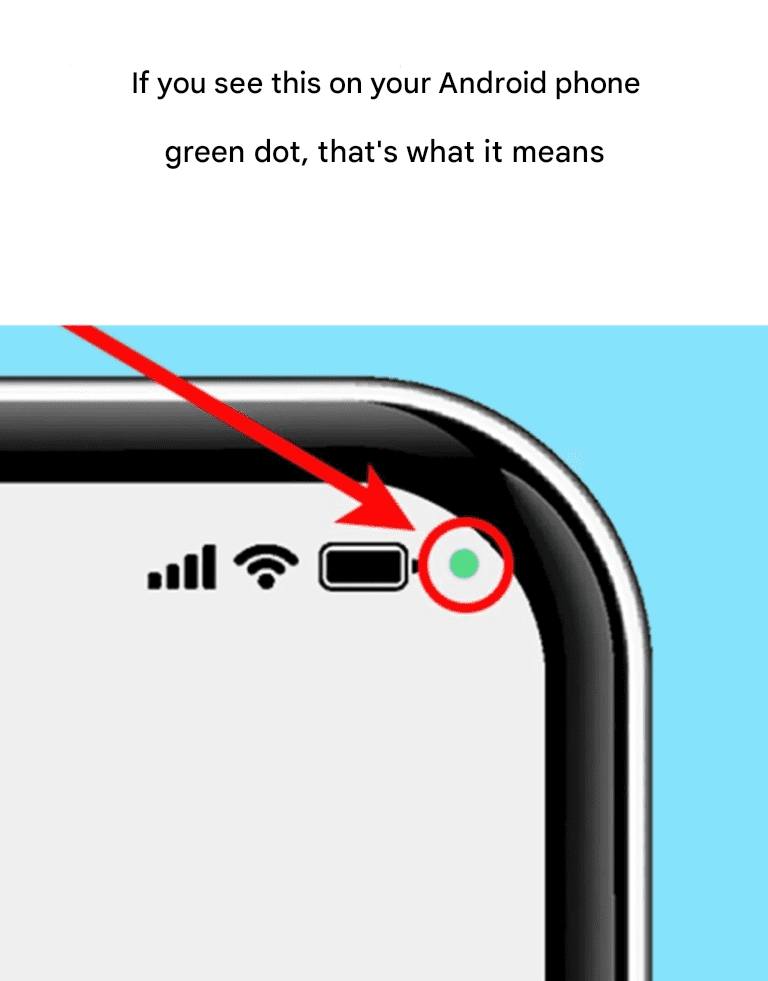
The green dot in the top right corner of your Android phone might seem confusing, but don’t worry. We’ll explain what it is and what it means.
Like its competitor, the iPhone, Samsung has designed Android phones with several important alert icons. Some are more intuitive than others, but users often wonder about the green dot in the upper right corner. While they know it indicates that a feature is enabled, they don’t always know which one it represents.
Samsung says it added this feature to give users more control over their privacy settings. Once you understand what it means, you’ll know whether it’s worth reviewing your phone’s privacy and permission settings.
What does the green dot mean?
Unlike iPhones, which use green and orange dots to differentiate functions, Android phones use a single icon for everything. A green dot indicates that one of the open apps is using the device’s microphone or camera. While this isn’t a problem if you use the camera frequently, it can be confusing if you forget to grant camera or microphone access to an open app.
What to do when you see a green dot?
What to do when you see a green dot?
According to Samsung, you can quickly find out which app is using the camera or microphone in four easy steps. When a notification appears, an icon will be displayed indicating whether the alert is for the camera, the microphone, or both. This icon will then shrink to a dot in the upper right corner, appearing alongside other active indicators.
To learn more, swipe down from the top of the notification panel to open it and tap the dot to expand it. This will open a dialog box that tells you what’s being used (camera, microphone, or both) and which app is using them. If you grant the app access, you don’t need to do anything else.
However, if you don’t recall granting access to a specific app, go to Settings and disable those permissions. If the notification shows an app you no longer use, consider deleting it from your device for peace of mind.